
Checking for a Network Adapter |
|
|---|---|
| 1. | Open up the Control Panel |
| 2. | Click on the Network icon |
| 3. | If you have a network adapter, other than the Dial-up Adapter, continue to the next page |
| 4. | If not, continue with Adding a Network Adapter |
 |
|
Adding a Network Adapter |
|
|---|---|
| 1. | Open up the Control Panel |
| 2. | Click on Add New Hardware |
| 3. | Click the Next button |
| 4. | You can either have Windows9x search for the adapter by selecting YES or select NO to manually enter the adapter |
 |
|
| 5. | Click the Next button |
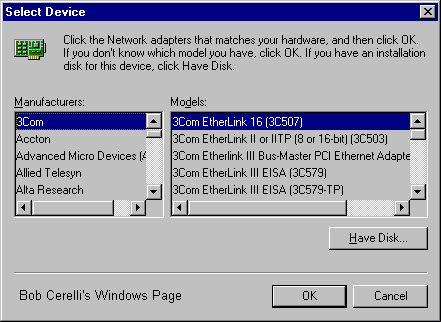
| 6. | If you selected NO, you will need to manually select an adapter. |
 |
|
 |
|
| 7. | Reboot if requested |
Adding and Configuring the TCP/IP Protocol |
|
|---|---|
Confirming the Default Network Settings |
|
| 1. | Open up the Control Panel |
| 2. | Click on the Network icon |
| 3. | If you have Client for Netware Networks:
|
| 4. | The default setting should look like the panel below |
 |
|
Adding TCP/IP Protocol |
|
|---|---|
| 1. | Click on the Add button |
| 2. | Click on Protocol |
| 3. | Click on Microsoft |
| 4. | Click on TCP/IP |
| 5. | Highlight NetBEUI – Click on Remove |
| 6. | Highlight IPX/SPX – Click on Remove |
| 7. | Click on OK and reboot if necessary |
| 8. | Your Network Setup should look like: |
 |
|
Configuring TCP/IP
|
|
|---|---|
| 1. | Click on TCP/IP |
| 2. | Select IP Address: |
| 3. | If you have a DHCP serviced subnet,
|
| 4. | If not, enter your IP address and Subnet Mask |
 |
|
| 5. | Click on WINS Configuration |
Configuring TCP/IP
|
|
|---|---|
| 1. | If you do not have a WINS Server, select Disable WINS Resolution |
| 2. | If have a WINS Server but not a DHCP serviced subnet:
|
| 3. | If you have a DHCP serviced subnet, select Use DHCP for WINS Resolution |
 |
|
| 4. | Click on Gateway Configuration |
Configuring TCP/IP
|
|
|---|---|
| 1. | Type in the IP address of your Gateways or Routers |
| 2. | Click on ADD after each one |
 |
|
| 3. | Click on DNS Configuration |
Configuring TCP/IP
|
|
|---|---|
| 1. | Type in your Host Name |
| 2. | Type in your Domain Name |
| 3. | Type in the IP address for your network’s Domain Name Server(s) |
| 4. | Click on Add |
| 5. | If you have more than one DNS server, add subsequent IP addresses. |
| 6. | Bindings and Advanced should not need to be modified |
| 7. | Click on OK and reboot. You should then have network access. |
 |
|
This site is copyrighted. No portion may be reproduced without my written permission.


