Much has been mentioned about the new graphic enhancements with Vista’s Aero.
While some of it are merely nice decoration, there are also a lot of practical benefits
1.
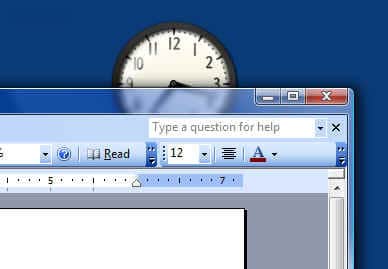
Transparent Glass – An example of this is in the following graphic.
2.
This is a screenshot of Word2003. Notice how the clock is in focus above the toolbar. With Aero Glass, the toolbar is slightly transparent and objects behind are a little out of focus.
For the use of Bob Cerelli’s Windows Web Site
While this may be nice to look at, where I really find Aero useful is in switching between applications.
There are some new ways to do this and I will show the differences.
Switching Applications from the TaskBar
1.
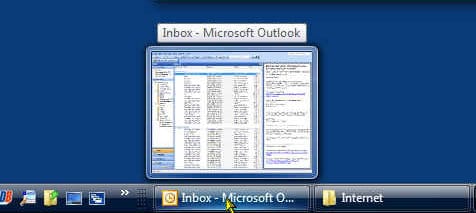
The first is if you hover the mouse over an application in the taskbar.
2.
It will show not only the name of the application but the open document as well.
For the use of Bob Cerelli’s Windows Web Site
Alt-Tab Application Switching
1.
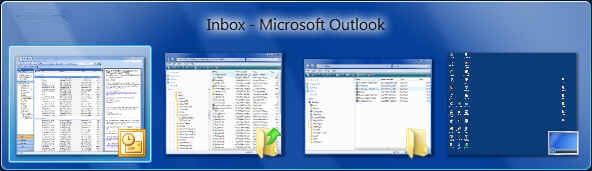
The next way to switch is the traditional Alt-Tab method.
2.
The difference with Aero is that it shows the application name in the title. If a program has a document open, it will show that name as well. This is useful if you have multiple files open in a program. You can easily open to the exact one you want.
3.
You can keep pressing the tab key until you get to the application you want.
4.
A slightly quicker way is to use the mouse to select the application you want
For the use of Bob Cerelli’s Windows Web Site
Flip3D Task Switching
1.
The last new way to switch between applications is with the 3D switching.
2.
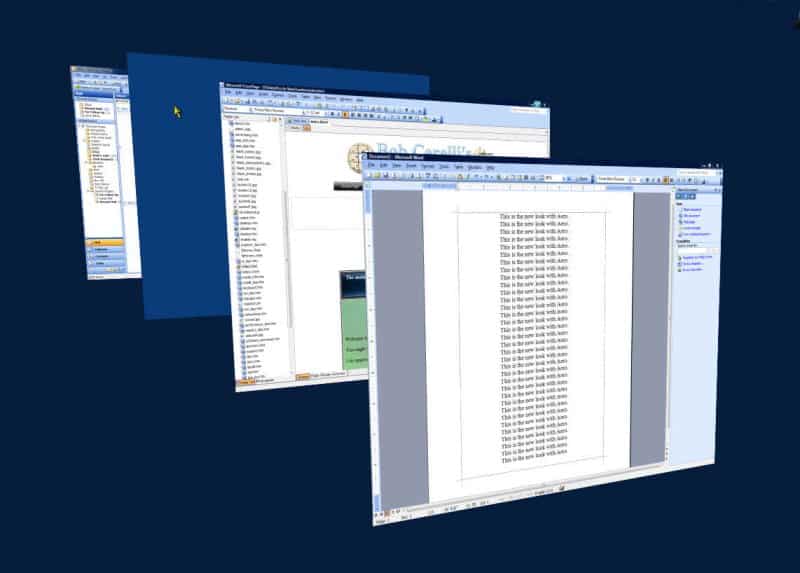
While holding down the Windows key, press the tab key to get a 3D stack.
3.
You will see a stacked series of smaller windows of your running programs, each with the view of the application.
4.
Continuing to hold down the Windows key while you press the tab key, brings the next window to the front.
5.
When you have the window you want, release the keys and that application and file will then be the one you can work on.
6.
Alternatively you can simply click on the window you want to open. This is much faster since you don’t have to spend the time to cycle through the windows.
7.
You can also use the tab arrow keys or wheel mouse to scroll through pages
8.
In the following example, first is Word, then Front Page. then the Desktop, then Outlook
For the use of Bob Cerelli’s Windows Web Site
This site is copyrighted. No portion may be reproduced without my written permission.