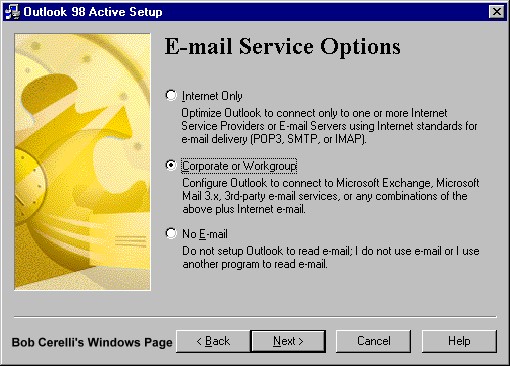
When first installing Outlook, my preference is to choose the Corporate or Workgroup Option. This allows you to directly assign the name and location of the file Outlook will use for keeping your e-mail. This is much easier to do right from the start rather than adding it in later.
-
This allows you to directly determine the location of the file Outlook will use for keeping your e-mail. For example, this way you could put in in C:\E-MAIL instead of buried in the default one.
-
It makes it much easier to locate if you need to backup or restore a file.
-
It also allows you to choose the name of the file. Again the default of outlook.pst is not very descriptive.
-
It also allows you to keep your e-mail file on a server or other central location
-
It allows for multiple e-mail profiles to be used. This way more than one person can easily use Outlook on the same computer and have completely different e-mail files.
|
| 1. |
To determine which configuration of Outlook is currently installed, right click on the Outlook icon and select Properties. |
| 2. |
If you see the screen below, you have the Internet Only configuration installed. |
 |
| 3. |
If you see the screen below, you already have the Corporate/Workgroup configuration installed. |
 |
| 4. |
To reconfigure either one, you will need to have the original source files available on CD or a network. This would either be from Outlook or Office files. |
| 5. |
For configuration instructions, click on the appropriate link for whichever version you have:Outlook98
Outlook2000 |
Adding the Corporate/Workgroup
Configuration for Outlook98
|
|
1.
|
If this was not done during the install of Outlook, you can add it later. You will need access to your Outlook source files.
|
|
2.
|
Go to Control Panel / Add/Remove Programs.
|
| 3. |
Double click on Microsoft Outlook 98 |
| 4. |
Click on the Add New Components button |
|

|
|
5.
|
Since it is no longer available on from the web, click on Install from CD. This will point you to the original source location where Outlook98 was install.
|
|

|
|
6.
|
When prompted at the next two screens for scanning, click on the Yes button.
|
| 7. |
Scroll down and check Corporate or Workgroup E-Mail Service |
|

|
|
8.
|
Click on the Next and Install Now buttons |
|

|
| 10. |
Reboot when requested |
| 11. |
The screen show now look something like the one below. If not, you may need to go back to the Add/Remove icon and select Rerun Outlook98 Setup, and choose the Corporate configuration. |
 |
|
14.
|
If you double click on the Personal Folders, you can see where you can point this to a different location for the path. |
 |
|
|
This site is copyrighted. No portion may be reproduced without my written permission.